
table of contents
Ready to get started?
See how Orca helps you make smarter investment decisions.
Get a Demo
Blog

Connect Orca to Claude

And ask your fund anything
Artem Petrushin
5 min read
May 18, 2026

Your fund data lives in Orca. Your thinking happens in Claude. Now they’re the same place.

Orca’s MCP connector brings your Fund Management System straight into Claude. Once connected, you can ask plain-language questions about your fund - capital call status, LP distributions, portfolio positions, KPIs, reporting data - and get answers pulled live from your FMS, right inside Claude. No exports. No copy-pasting. No context-switching. Here’s how to set it up in just a few minutes.

What You’ll Need Before You Start

Just two things:

  • Claude, open in your browser or the desktop app, with custom connectors available.
  • Your Orca account, signed in at https://fms.orcainc.com.

One important note: keep both Claude and Orca FMS open - and stay signed in to Orca - throughout the setup. The final connection step relies on that active session.

Step 1: Create Your OAuth Client in Orca

First, you’ll generate your own secure connector credentials in Orca FMS. Your Client ID and Secret are created in your personal account settings and are shown only once, so keep them handy until setup is complete.

  1. In Orca FMS, click your avatar in the top-right corner, then select Account settings.
Avatar menu → Account settings
  1. Scroll down to My OAuth clients and click Create new client. Don’t see this option? Ask your Orca admin to grant you connector-creation access.
Account settings → My OAuth clients → Create new client
  1. Give your client a Name (for example, “Claude”) and click Create. This name appears in your Orca account and on the approval screen in Step 3 – it’s separate from the name you’ll give the connector in Claude.
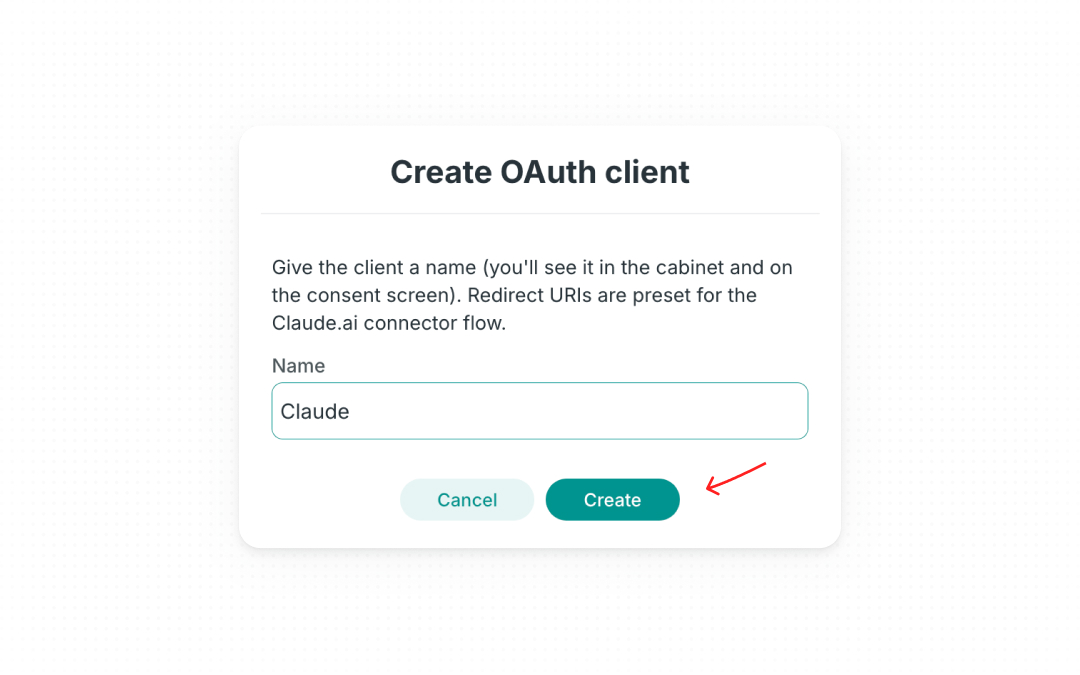
Create OAuth client dialog → Create
  1. A window titled “Paste these into Claude” will appear with three values: Remote MCP server URL, OAuth Client ID and OAuth Client Secret. Use the Copy button next to each one when you need it in Step 2.
Important: keep this window open until you’ve finished connecting in Step 3. Once you click Done, your Client Secret can’t be shown again.
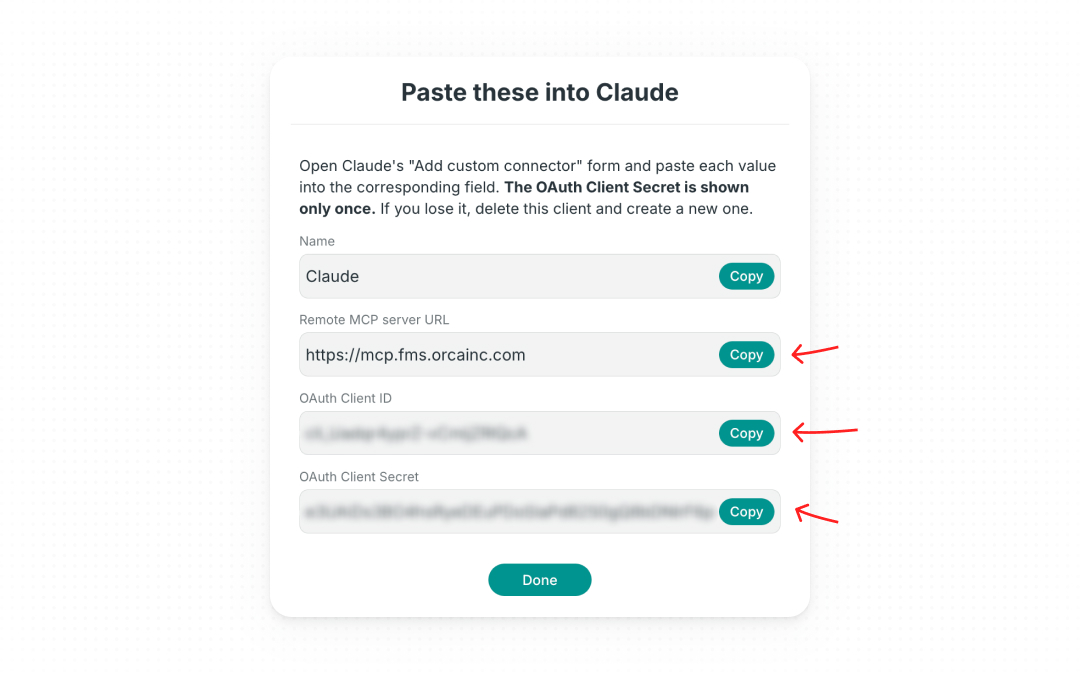
“Paste these into Claude” pop-up — copy each value with its Copy button

Step 2: Add Orca as a Custom Connector in Claude

Open Claude in a new browser tab or in the desktop app, and keep the Orca window from Step 1 open so you can copy your credentials across.

  1. In the left sidebar, click Customize (the briefcase icon).
Left sidebar → Customize
  1. Open the Connectors tab (1), then click Add in the top-right corner (2).
Customize → Connectors tab (1) → Add (2)
  1. In the Add custom connector window, fill in two fields and click Continue:
    • Name: Orca – this is how the connector will appear in your Claude connectors list.
    • Remote MCP server URL: paste the URL from your Orca window.
Add custom connector → Name, Remote MCP server URL → Continue
  1. On the next screen, leave Authentication set to Always required. Under OAuth client, choose Use your own OAuth client to reveal the credential fields. (Skip the other OAuth options – Orca uses the client you created in Step 1.)
Authentication → Always required; OAuth client → Use your own OAuth client
  1. Paste your OAuth Client ID into the first field and your OAuth Client Secret into the second. Leave the remaining settings as they are, then scroll down and click Add.
Client ID + Client Secret → Add
  1. Claude will open the Orca connector page. You may see a note saying “You started connecting but didn’t finish” – that’s expected. Click Connect, and you’ll be taken to Orca FMS to approve access.
Connector page after Add → Connect

The Orca connector is now set up in Claude. One step to go: securely linking it to your live Orca account.

Step 3: Connect to Orca

  1. On the Orca approval screen, review the requested access and click Allow. You’ll be taken back to Claude, and your connector is ready to use.
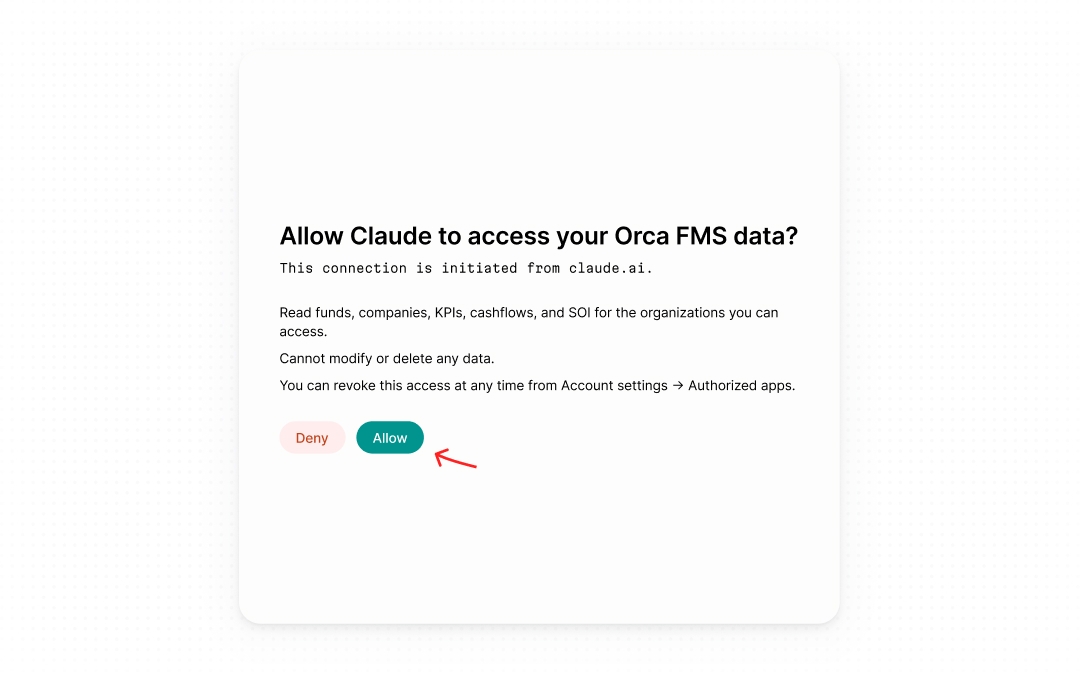
Orca consent screen → Allow

Closed the connector page before clicking Connect? No problem – go to Customize → Connectors, select Orca from the list and click Connect.

Connectors list → Orca → Connect

In case something goes wrong:

  • Check that you’re signed in to Orca FMS at https://fms.orcainc.com in your default browser. Refresh the page to be sure.
  • Click Connect again.
  • Still not working after two attempts? Reach out to us at helpdesk@orcainc.com.

Step 4: Start Asking Questions

With the connection in place, Claude has read access to your Orca data. Open a new chat and ask a question in plain language, for example:

  • “List the funds in my organization.”
  • “Show me the status of our most recent capital call.”

Claude pulls the answers from your live Orca data and returns them in context – so you can analyze, compare and build on them without ever leaving the chat.

Troubleshooting

IssueWhy it happensHow to fix it
The “Add” button is missing in ConnectorsYour Claude version may be out of date, or custom connectors are turned off for your workspaceUpdate Claude, or check with your Claude workspace admin. In older versions, look under Settings → Connectors → Add custom connector.
“Create new client” isn’t available in OrcaYour Orca user doesn’t have connector-creation access yetAsk your Orca admin to grant you access
The connection never completesYou’re not signed in to Orca in your default browserSign in at fms.orcainc.com, then click Connect again
“Invalid client” or sign-in errorThe Client ID or Secret is incorrect, or the client was deletedYour Secret is shown only once. If it’s lost, go to Account settings → My OAuth clients, delete the old client, create a new one and enter the new values in Claude.
The connector is added, but Claude returns no dataThe connection step (Step 3) wasn’t completedFind Orca in your Claude connectors list and click Connect
Connected, but requests failYour session has expired or access was revokedIn Claude, click Disconnect on Orca, then Connect again
Connected, but only some data appearsYour Orca user only has access to certain funds or organizationsAsk your Orca admin to extend your access

Need a Hand?

We’re here to help. Contact your Orca account admin or reach the team directly at helpdesk@orcainc.com if:

  • The connection keeps failing, even after creating a new OAuth client.
  • Claude’s screens look noticeably different from this guide – let us know and we’ll update it.

Artem Petrushin
Articles by
Artem Petrushin
|
Chief Product Officer
Artem serves as the Chief Product Officer at ORCA, where he leads the development of innovative solutions for venture capital management. His vision and leadership are essential in driving the company’s product strategy, ensuring that ORCA continues to meet the evolving needs of the industry. In addition to his work at ORCA, Artem serves as CFO at SerVC, where he oversees the financial operations and ensures the implementation of robust strategies to support the company’s ventures. Artem holds an MA in Finance and brings over a decade of experience managing complex, cross-functional projects. His strong foundation in finance, combined with his leadership in product development, enables him to guide teams effectively and deliver exceptional products that meet market demands.

Frequently asked questions

Everything you need to know about Orca
What types of funds and structures does ORCA support?
Orca is designed to seamlessly integrate with any fund structure, making it ideal for venture capital, private equity, and other complex fund models. This includes multi-fund setups, SPVs, co-investments, etc with full support for cross-fund transactions.
How does Orca automate ongoing fund operations?
Orca streamlines and automates the entire lifecycle of funds - from incorporation to liquidation. Key operations such as automated capital account management, P&L, balance sheets, cash flow, and performance metrics (IRR, TVPI, DPI) are fully integrated into the platform. Orca also generates audit-ready outputs, and automates the distribution of notices, quarterly reports, LP letters, and more. This level of automation reduces manual errors and increases operational efficiency.
How does Orca’s Investor Portal stand out from the rest?
Our Investor Portal is built with the highest standards of security and usability in mind, offering one of the most intuitive and secure user experiences available. With advanced features such as digital performance reports, capital calls, and digital capital accounts, the portal allows investors to access and interact with their fund data in real time.
How secure is the platform, and how is sensitive investor/fund data protected?
Orca undergoes annual penetration testing to ensure compliance with the most stringent security standards, including GDPR regulations and SOC II certifications. Our in-house CISO oversees all security protocols, while our dedicated SOC team works 24/7 to monitor system logs for any anomalies.
What onboarding and data migration support do you provide?
Each client receives a minimum 10 hours of personalized training and support. We also utilize advanced AI-driven tools to facilitate quick and efficient data migration, ensuring a seamless transition to Orca. Our dedicated learning hub provides detailed explanations and tutorials for every aspect of the platform, allowing your team to get up to speed quickly and make the most of Orca’s capabilities.
How does ORCA drive efficiency and growth throughout every stage of my fund’s lifecycle?
From simplifying the onboarding process to automating reporting and compliance, Orca enables you to manage your portfolio with greater precision. Automated KPI collection and AI-driven performance analysis provide deep insights, while advanced AI-powered portfolio analysis enhances decision-making. Digital tools further streamline investor communications, ensuring seamless document distribution and a superior LP reporting experience.

One platform,
all the solutions.

Your life just got a whole lot easier.
Get a Demo
Interested in learning more about Orca?